

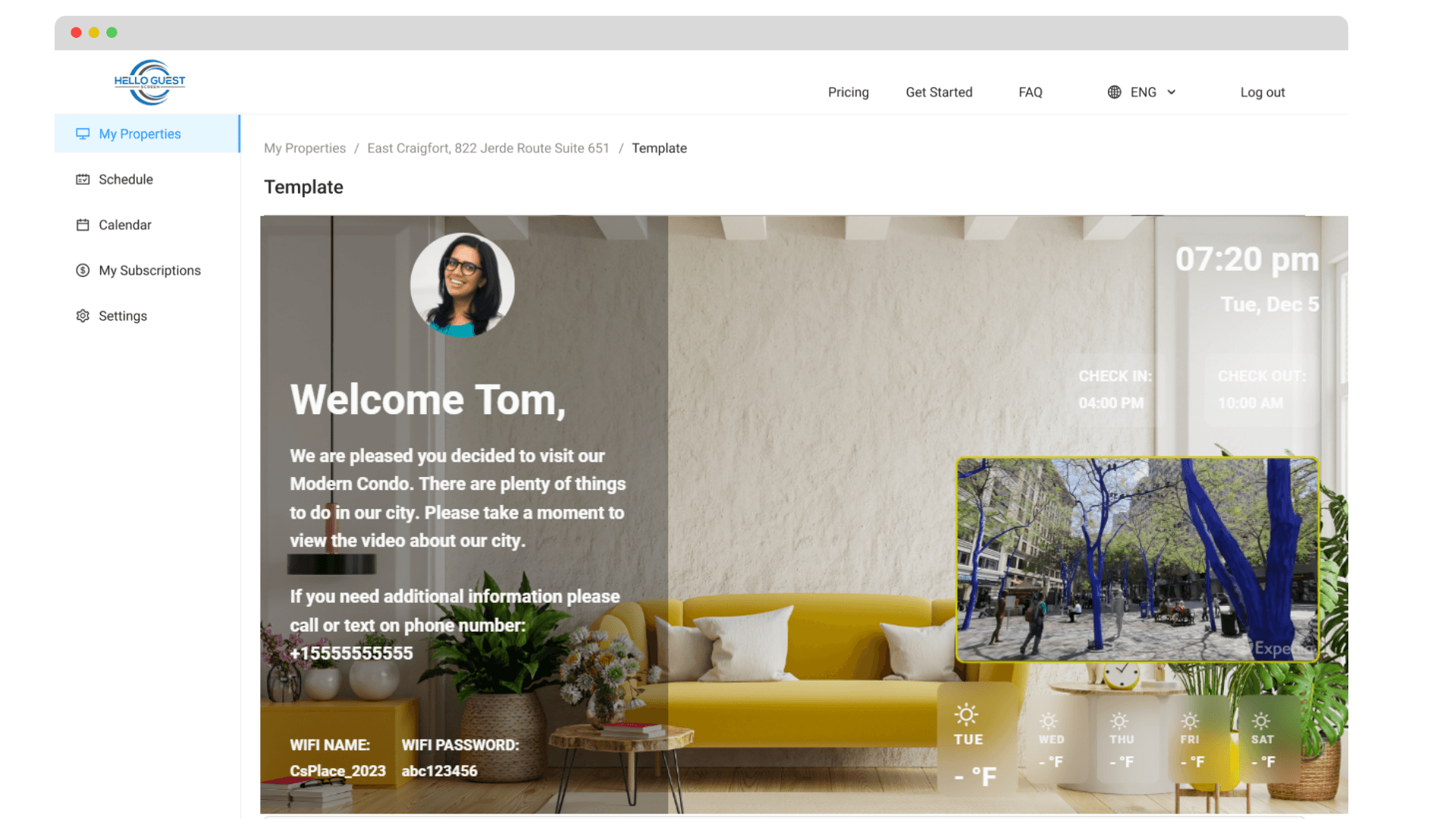
Start by creating your Hello Guest Screen account. After setting up your screen and confirming your email, you’re all set to go.
Log in to your account and follow the video instructions—it’s user-friendly, even without the video. The first screen you create will be your default screen, displayed when you don’t use the personalized schedule feature.
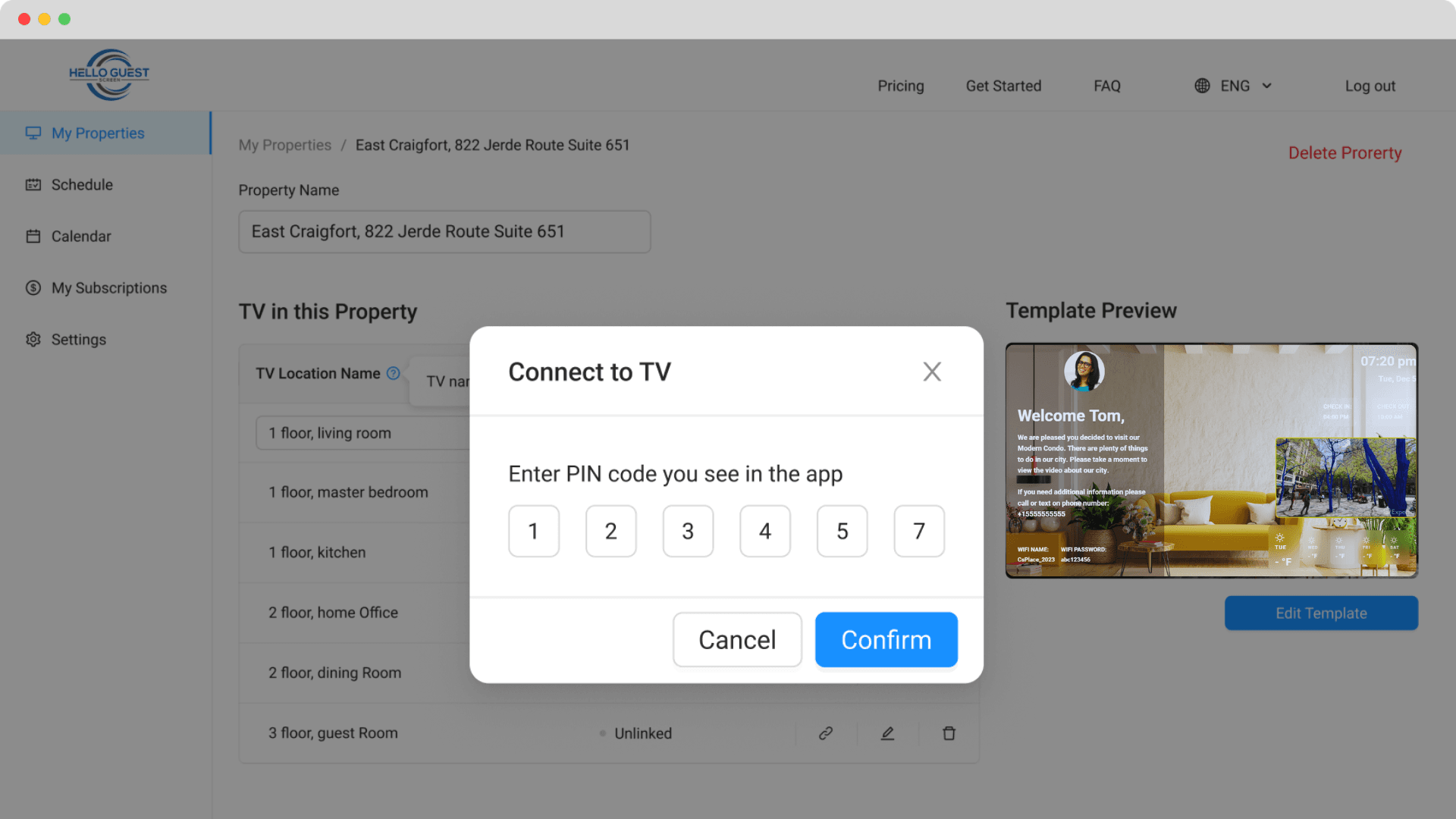
If you’re using an Amazon Fire TV, Google TV, or an external device, ensure it’s connected to WiFi. If using an external device, select the correct HDMI port. Use voice search to find the ‘Hello Guest Screen App,’ or type it into the App Store. Once found, install and launch the app to display a 6-digit code.
Download the HGS App on your Smart TV, just like Netflix or YouTubeTV. Ensure your TV has Amazon or Google Playstore; if not, use an external device. You may need to type the full name or ask Alexa to find ‘Hello Guest Screen App.’ The first screen you create will be your default and displays when no guests are scheduled. Do not unlink a screen; it updates remotely in real-time. You can schedule personalized guest messages anytime. For support, visit the Contact Page or call 1-888-973-6214 (option 3) Monday thru Friday 7am to 4pm CST.